
Customizing HTML IntelliSense in Visual Studio
Purpose
When a project uses custom HTML attributes and JavaScript is used to process these specific attributes, you can extend Visual Studio's HTML IntelliSense to prevent forgetting these attributes or making typos during development.
Current Limitations
- Settings are applied globally to the Visual Studio installation on the machine, rather than on a per-project basis.
- Settings are reset every time Visual Studio is updated.
Configuration Method
Navigate to the Visual Studio HTML IntelliSense template directory and open the "SchemaCatalog.xml" file. Reference paths are as follows:
- 2019 Community:
C:\Program Files (x86)\Microsoft Visual Studio\2019\Community\Common7\IDE\Extensions\Microsoft\Web Tools\Languages\Schemas\HTML\ - 2022 Community:
C:\Program Files\Microsoft Visual Studio\2022\Community\Common7\IDE\Extensions\Microsoft\Web Tools\Languages\Schemas\HTML
- 2019 Community:
Add a
<schema />entry in "SchemaCatalog.xml" to reference your custom XSD (XML Schema Definition) file. The<schema />attributes are as follows:- File: The filename of the XSD to extend.
- IsSupplemental: Must be set to
truefor HTML IntelliSense to take effect. - CustomPrefix: The keyword that triggers
IntelliSense. This must match the prefix of your custom attributes to function correctly.
Example:
xml<?xml version="1.0" encoding="utf-8"?> <schemas> <schema File="html.xsd" FriendlyName="HTML" Uri="http://schemas.microsoft.com/intellisense/html" /> <schema File="jQuery_mobile.xsd" FriendlyName="jQuery Mobile" Uri="http://schemas.microsoft.com/intellisense/jquery-mobile" IsSupplemental="true" CustomPrefix="data-" /> <schema File="windows.xsd" FriendlyName="Windows App" Uri="http://schemas.microsoft.com/intellisense/windows" IsSupplemental="true" CustomPrefix="data-" /> <schema File="aria.xsd" FriendlyName="WIA-ARIA" Uri="http://schemas.microsoft.com/intellisense/aria" IsSupplemental="true" CustomPrefix="aria-" /> <schema File="angular.xsd" FriendlyName="AngularJS" Uri="http://schemas.microsoft.com/intellisense/angular" IsSupplemental="true" CustomPrefix="ng-" /> <schema File="svg.xsd" Uri="http://www.w3.org/2000/svg" IsXml="true" /> <schema File="xml.xsd" Uri="http://www.w3.org/XML/1998/namespace" /> <schema File="xlink.xsd" Uri="http://www.w3.org/1999/xlink" /> <!-- Add the line below; replace 'Wing' with your own code --> <schema File="Wing.xsd" FriendlyName="Wing" IsSupplemental="true" CustomPrefix="data-" /> <!-- Visual Studio 2022 has more code following this; omitted here due to layout constraints --> </schemas>
TIP
- Updating Visual Studio causes custom HTML IntelliSense to stop working because the "SchemaCatalog.xml" file is reset.
- If you find AngularJS or Aria IntelliSense distracting, you can comment out their XML references; this will prevent them from appearing until the next Visual Studio update.
- Create the XSD file in the same directory. If you encounter permission issues while saving, create it elsewhere and copy it over.
- If Visual Studio is already open, you must restart it for the changes to take effect.
XSD File Explanation
Structure Overview
<xsd:schema
  xmlns:xsd="http://www.w3.org/2001/XMLSchema"
  xmlns:vs="http://schemas.microsoft.com/Visual-Studio-Intellisense"
  vs:ishtmlschema="true">

  <xsd:annotation>
    <xsd:documentation>
      Microsoft Visual Studio schema for Wing
    </xsd:documentation>
  </xsd:annotation>
  <!-- The above declares the XML format; adjust the description in documentation as needed -->

  <!-- Excerpt from aria.xsd, slightly modified for explanation. "aria-" is set by CustomPrefix -->
  <!-- When "aria-" is typed in an input, "aria-invalid" and "aria-activedescendant" will be listed -->
  <!-- If "aria-invalid" is selected, attribute values "false" and "true" will be provided as options -->
  <xsd:element name="input">
    <xsd:complexType>
      <xsd:attribute name="aria-invalid">
        <xsd:simpleType>
          <xsd:restriction base="xsd:NMTOKEN">
            <xsd:enumeration value="false" />
            <xsd:enumeration value="true" />
          </xsd:restriction>
        </xsd:simpleType>
      </xsd:attribute>
      <xsd:attribute name="aria-activedescendant" />
    </xsd:complexType>
  </xsd:element>
</xsd:schema>Node Explanation
Since the function of each node was determined through trial and error using existing files, I can only provide a general explanation. You can refer to the XML Schema Tutorial for XSD structures, though I am not certain which specific parts are effective for this purpose.
<xsd:element />: Sets the HTML element that triggers IntelliSense. XML attributes:- name: Sets the HTML TAG. Use "all" to trigger on any TAG.
<xsd:complexType />: Can contain multiple<xsd:attribute />or<xsd:attributeGroup />elements.<xsd:attribute />: Used to define custom HTML attributes. XML attributes:- name: The name of the custom attribute.
<xsd:attributeGroup />: Used to group multiple<xsd:complexType />definitions. XML attributes:- name: The group name.
- ref: References a group by its name.
<xsd:restriction />: Used to restrict HTML attribute values, combined with<xsd:enumeration />to list valid values.
Implementation Example
Below is the content of an XSD file used for Unobtrusive JavaScript APIs I previously implemented with jQuery.
<?xml version="1.0" encoding="utf-8" ?>
<xsd:schema
  xmlns:xsd="http://www.w3.org/2001/XMLSchema"
  xmlns:vs="http://schemas.microsoft.com/Visual-Studio-Intellisense"
  vs:ishtmlschema="true">

  <xsd:annotation>
    <xsd:documentation>
      Microsoft Visual Studio schema for Wing
    </xsd:documentation>
  </xsd:annotation>

  <xsd:attributeGroup name="formatAttributeGroup">
    <xsd:attribute name="data-format">
      <xsd:simpleType>
        <xsd:restriction base="xsd:NMTOKEN">
           <xsd:enumeration value="trim" />
           <xsd:enumeration value="trim|lowerCase" />
           <xsd:enumeration value="trim|upperCase" />
           <xsd:enumeration value="lowerCase" />
           <xsd:enumeration value="upperCase" />
        </xsd:restriction>
      </xsd:simpleType>
    </xsd:attribute>
  </xsd:attributeGroup>

  <xsd:attributeGroup name="copyAttributeGroup">
    <xsd:attribute name="data-copy-target" />
    <xsd:attribute name="data-copy-always">
      <xsd:simpleType>
        <xsd:restriction base="xsd:NMTOKEN">
          <xsd:enumeration value="true" />
        </xsd:restriction>
      </xsd:simpleType>
    </xsd:attribute>
  </xsd:attributeGroup>

  <xsd:attributeGroup name="checkAttributeGroup">
    <xsd:attribute name="data-check-target" />
 <xsd:attribute name="data-check-parant" />
  </xsd:attributeGroup>

  <xsd:attributeGroup name="resetAttributeGroup">
    <xsd:attribute name="data-reset-target" />
  </xsd:attributeGroup>

  <xsd:attributeGroup name="resetValueAttributeGroup">
    <xsd:attribute name="data-reset-value" />
  </xsd:attributeGroup>

  <xsd:attributeGroup name="buttonAttributeGroup">
    <xsd:attribute name="data-alert-message" />
    <xsd:attribute name="data-confirm-message" />
    <xsd:attribute name="data-route-url" />
    <xsd:attribute name="data-window-url" />
    <xsd:attribute name="data-window-name" />
    <xsd:attribute name="data-window-features" />
    <xsd:attribute name="data-action-url" />
    <xsd:attribute name="data-action-confirm" />
    <xsd:attribute name="data-action-ignore-error">
      <xsd:simpleType>
        <xsd:restriction base="xsd:NMTOKEN">
          <xsd:enumeration value="true" />
        </xsd:restriction>
      </xsd:simpleType>
    </xsd:attribute>
    <xsd:attribute name="data-action-callback" />
    <xsd:attribute name="data-query-url" />
    <xsd:attribute name="data-query-condition" />
    <xsd:attribute name="data-query-list" />
    <xsd:attribute name="data-query-auto">
      <xsd:simpleType>
        <xsd:restriction base="xsd:NMTOKEN">
          <xsd:enumeration value="true" />
        </xsd:restriction>
      </xsd:simpleType>
    </xsd:attribute>
    <xsd:attribute name="data-query-confirm" />
    <xsd:attribute name="data-query-ignore-error">
      <xsd:simpleType>
        <xsd:restriction base="xsd:NMTOKEN">
          <xsd:enumeration value="true" />
        </xsd:restriction>
      </xsd:simpleType>
    </xsd:attribute>
    <xsd:attribute name="data-query-callback" />
  </xsd:attributeGroup>

  <xsd:element name="input">
    <xsd:complexType>
      <xsd:attributeGroup ref="formatAttributeGroup" />
      <xsd:attributeGroup ref="copyAttributeGroup" />
      <xsd:attributeGroup ref="checkAttributeGroup" />
      <xsd:attributeGroup ref="resetAttributeGroup" />
      <xsd:attributeGroup ref="resetValueAttributeGroup" />
      <xsd:attributeGroup ref="buttonAttributeGroup" />
    </xsd:complexType>
  </xsd:element>
  <xsd:element name="textarea">
    <xsd:complexType>
      <xsd:attributeGroup ref="formatAttributeGroup" />
      <xsd:attributeGroup ref="copyAttributeGroup" />
      <xsd:attributeGroup ref="resetValueAttributeGroup" />
    </xsd:complexType>
  </xsd:element>
  <xsd:element name="select">
    <xsd:complexType>
      <xsd:attributeGroup ref="resetValueAttributeGroup" />
    </xsd:complexType>
  </xsd:element>
  <xsd:element name="button">
    <xsd:complexType>
      <xsd:attributeGroup ref="resetAttributeGroup" />
      <xsd:attributeGroup ref="buttonAttributeGroup" />
    </xsd:complexType>
  </xsd:element>
</xsd:schema>Results:
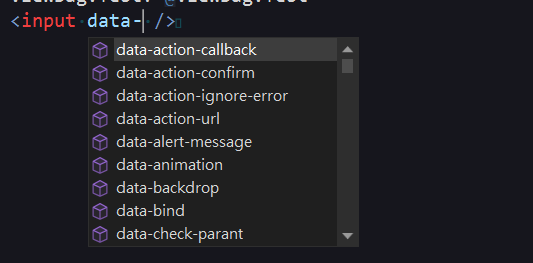
Typing "data-" lists the relevant attributes.
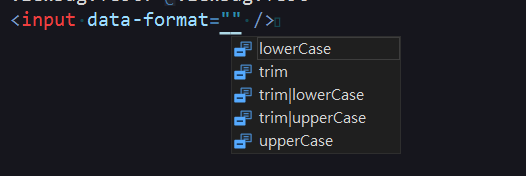
Selecting "data-format" lists the selectable attribute values.
TIP
Unobtrusive JavaScript can be understood similarly to Bootstrap or "jquery.validate.unobtrusive.js". By defining a large number of custom attributes and binding events or retrieving variable values from these attributes, you can trigger JavaScript events simply by setting these attributes in HTML. This was a mainstream approach before the popularity of modern front-end frameworks.
Change Log
- 2022-11-11 Initial document created.